
Appearance
Writing and organizing Articles
An Article is a piece of writing in your Warplyn library. As you edit, Warplyn saves a recoverable Draft checkpoint. A Revision is a saved point in the Article's history. This lets you keep working without treating every edit as a finished version.
Write and save an Article
Choose New article in the Library to begin. Rename the Article from its title field. Use the formatting toolbar to apply headings, lists, emphasis, links, quotes, and code. When you paste rich text, Warplyn keeps supported text formatting and removes unsafe or unsupported markup. It stores the Article as Markdown, so complex page layouts and embedded items do not carry over.
Warplyn saves your current Draft automatically as you edit. A Draft checkpoint is recoverable working text, not a new item in Revision History. Check the save-state indicator in the Article Status Bar if you need to know whether recent edits have been checkpointed. Warplyn also saves a pending checkpoint when you switch Articles or open Settings.
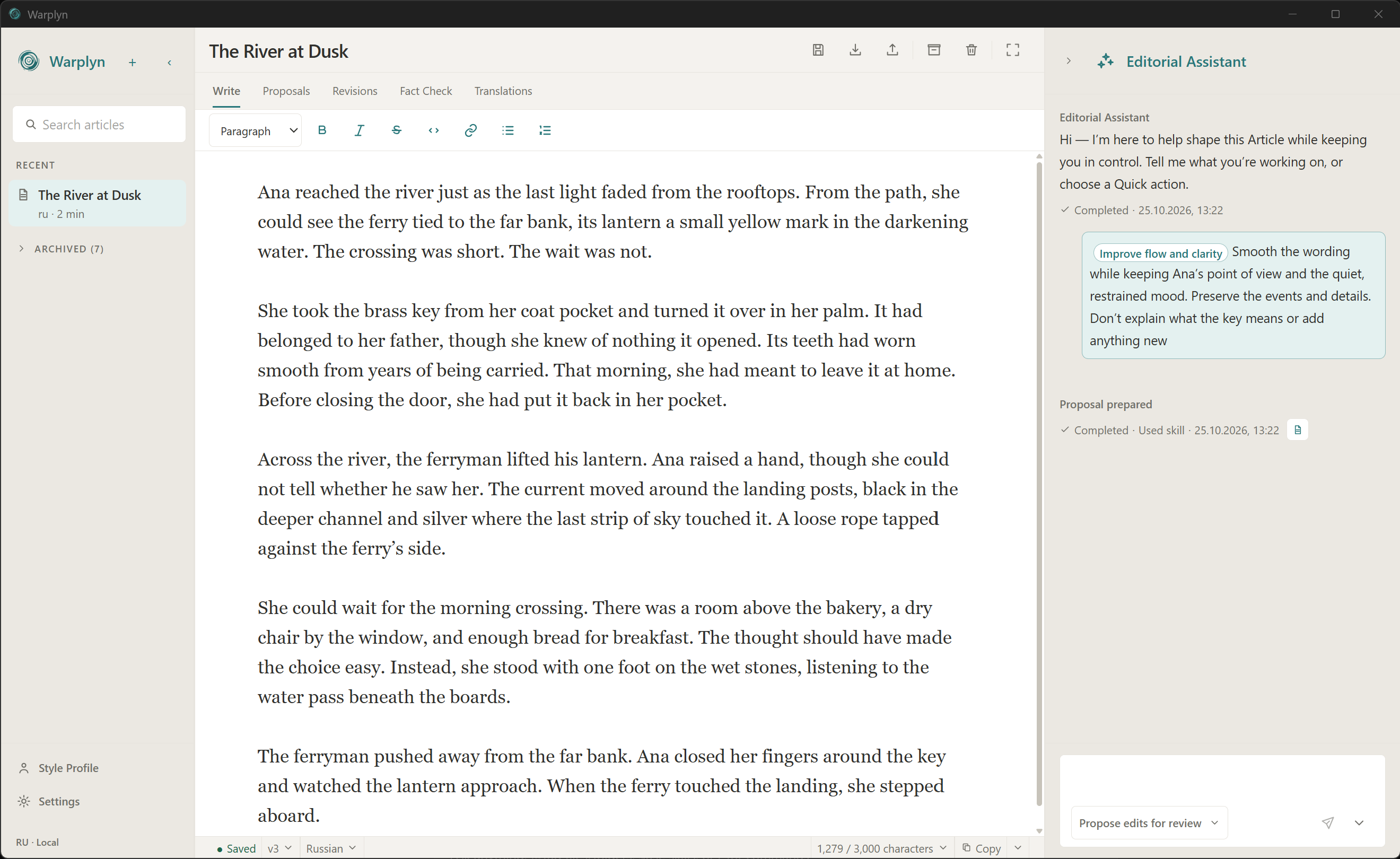
Example Article saved as a Draft in the writing workspace.
Choose Save revision when you want to keep the current Draft as a named point in its history. Saving a Revision does not remove earlier Revisions. For help when local text and a saved Draft no longer match, see Reviewing Articles.
Find and organize Articles
Use Library search to find Articles, including archived ones. Choose Articles to browse pinned and recent work, or Archive to browse archived Article groups. The collapsed Navigation Rail has shortcuts for New article, Search, Articles, and Archive. Pin an original Article from its Library menu to keep a shortcut in the Rail. Use Move up or Move down to reorder pinned Articles. Pinning and reordering do not change Article content. Use the Article title field to rename an Article.
Choose Archive Article to remove an Article group from the active list while keeping it in Archive. Select the archived group and choose Unarchive Article to bring it back. Deleting an Article requires confirmation and removes its Revisions and recoverable Drafts. Deleting an original also deletes its linked translations; deleting a translation leaves its source Article in place. If you only need to set it aside, archive it instead.
Use spelling help
The editor marks likely misspellings using your device's spelling support. In the desktop app, right-click a marked word to choose a suggested replacement or Add to dictionary. A replacement is an ordinary edit, so it can be undone and becomes part of the current Draft. Spelling checks stay on your device and do not send Article text to an AI provider.
In desktop Settings → Spelling, use Filter languages to find a language, select it under Prepare for offline writing, then choose Download dictionaries. Wait for its status to show Downloaded before relying on it offline. Available means the language is supported; it does not confirm that its dictionary has finished downloading. Choose Unload to stop using a prepared dictionary for this session. Preparing dictionaries does not change an Article's language. Downloads need internet access. On Windows, adding or removing personal words also affects the operating system dictionary and may affect other apps.
In Personal dictionary, search for saved words or enter one word or technical term per line under Words to add, then choose Add words. You can add up to 500 words at a time. Remove saved words when you want spelling help to flag them again. The list is shared across Articles and languages. The browser app uses browser spelling settings and does not offer dictionary management.
Use Focus mode to hide both supporting panels while you write. Choose it again to restore them. Use each panel's collapse control to close or reopen it; drag the divider beside a panel to resize it. On a narrow window, the panels can open as temporary drawers over the editor.
With a keyboard, use Tab and Shift + Tab to move through the Library, Article header, views, formatting toolbar, editor, status bar, and Assistant. Inside the editor, search, and Composer, the usual text-editing keys keep working. Settings has its own keyboard navigation. In its desktop sidebar, use Up, Down, Home, or End to move between sections, then Enter or Space to open one.
For moving a whole Article in or out of Warplyn, see Article files. For backups of your whole workspace, see Backups and recovery.