
Appearance
Editorial Assistant
Use the Editorial Assistant when you want help composing, revising, checking facts, reviewing style, or preparing a translation. Every request is explicit. Choosing from Quick actions only puts a Skill starter in the Composer. Select Send editorial request to start work.
Selecting text keeps edits focused on that passage. Nearby definitions and voice cues can help the Assistant interpret short selections, but sharing them also reveals unselected text to your provider. When a selection request needs Article text, Warplyn sends the selection plus up to 500 characters before it and 500 after it as separate, read-only context. Only the selected passage can be replaced. The composer explains this before you send; do not send if neighboring text is sensitive. General advice and Skill management do not need this text. Warplyn never silently expands to the whole Article. If context is insufficient, supply the relevant passage explicitly or ask again with a different selection.
Example
While revising a short story, select a passage and ask: “Improve the flow while keeping Ana’s point of view and the quiet mood. Don’t add new events.” The Assistant prepares a Proposal for Proposal Review. You could also ask it to review a chapter for shifts between past and present tense; style review Findings appear in Style Profile.
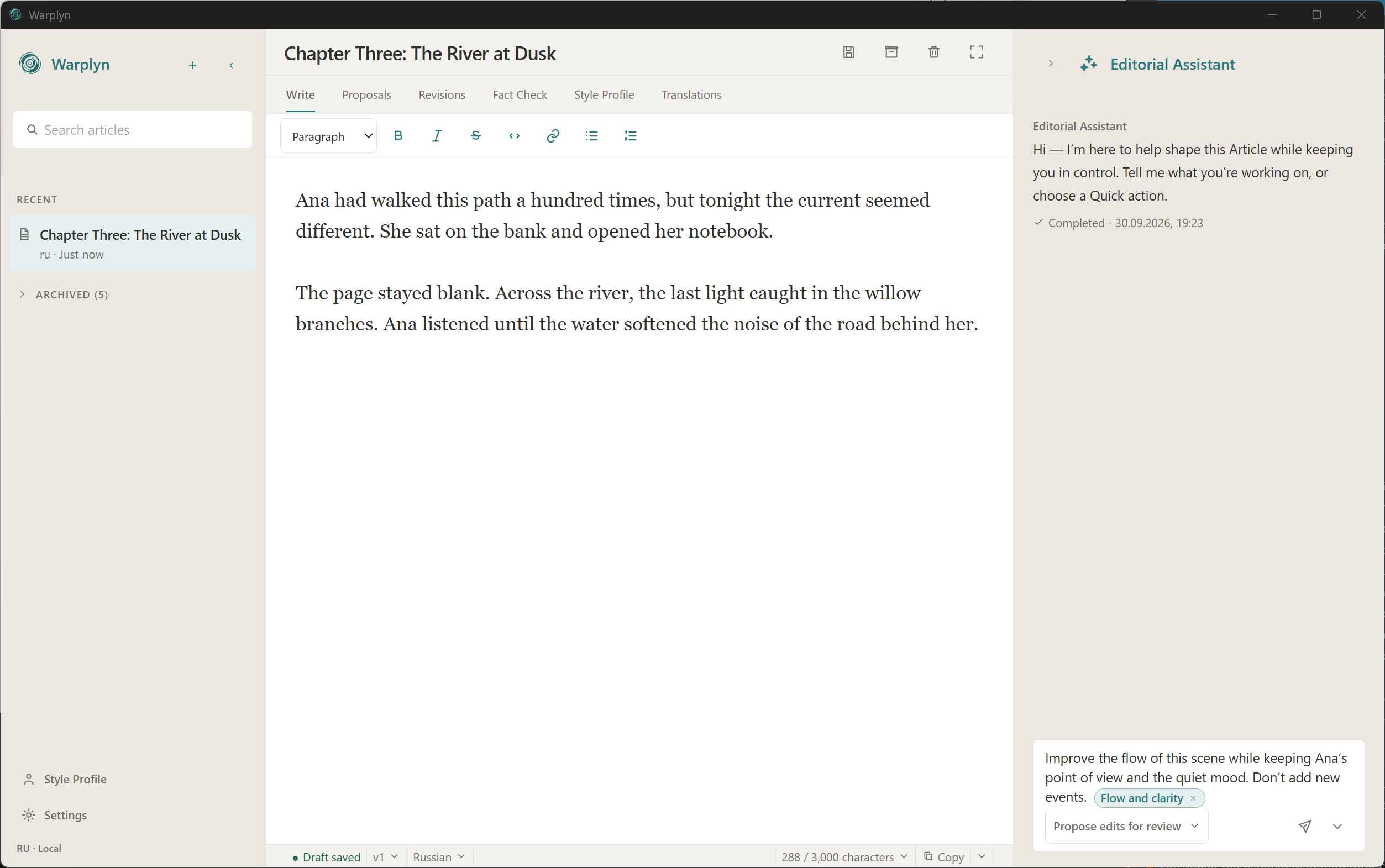
Example request in the Composer. Connect a provider before sending it. The screenshot shows an earlier Skill name.
The Assistant shows a short activity message while it works. Choose Stop request to cancel work that is taking too long. A cancelled or failed request does not change the Article; choose Retry when you want to run it again. The Assistant does not expose prompts, private inputs, credentials, or provider errors. When work is ready, use the result card to open the result:
- Proposal Review for generated or revised text.
- Fact Check for advisory Findings.
- Style Profile for style review Findings.
- Translations for a translation Proposal.
Opening a result does not change the Article. Review a Proposal before accepting its changes. Findings remain advisory, and translations remain separate linked Articles. See Reviewing Articles for proposals, history, recovery, and Fact Check. See Translations to compare and use translation results.
For a focused review of technical terms, choose Check technical terms from Quick actions. Its sourced Findings appear in Fact Check. See Check technical terms for the review steps and limits.
In Proposal Review, edit Proposed text directly in either Side by side or Stacked layout. Original stays read-only. Editing keeps each change's Accept or Reject decision. Choose a decision for every change, then select Apply to finish the review. Accepted wording creates one new Revision. If every suggestion is rejected, Apply dismisses the review without changing the Article or creating a Revision. To accept every change, choose Mark all accepted from Set all decisions…, then apply. Mark all rejected leaves the Article unchanged. Reset all decisions returns every suggestion to Pending and keeps your proposed-text edits. Choose Dismiss proposal to clear the review.
Unapplied edits stay available while switching layouts or Workspace Views. Reloading, switching Articles, dismissing the Proposal, or generating a new one clears those edits. A failed application keeps them so you can retry. Keep proposed numbers, links, code, and technical terms unchanged. Stale, unreliable, and already accepted Proposals are read-only. If you edit a fact correction's wording, its Findings remain advisory after application.
Skills help shape a request but do not add permissions. The Assistant chooses relevant Skills for an untagged request. It does not route ordinary requests through a default editing workflow. Warplyn does not run background work, publish directly, or change an Article without your approval.
Ask the Assistant to create a reusable Skill when a procedure should be available again. It may ask a short follow-up when the purpose, steps, or references are unclear. A created Skill is available at once and has its own local Skill Revision history. Creating it does not read your Article body or change its Draft, Proposal, or Revision.
You can ask the Editorial Assistant to inspect Revision History, saved editorial work, publishing guidance, or Style Corpus readiness. On an explicit request, it can add the current immutable Revision to the local Style Corpus and rebuild the Style Profile. It cannot accept Proposals, restore Revisions, resolve Findings, edit Drafts, delete style samples, or publish.
For writing samples, reusable guidance, or typography rules, open Style Profile. Style review Findings appear there and remain separate from your Article.