
Appearance
AI providers and models
Warplyn sends AI requests to the provider you configure in Settings → AI assistant. You need an account and API key from that provider. The provider may charge for API use.
Add a connection
In the desktop app, open Settings → AI assistant. Under How would you like to provide your key?, choose Add an API key or Environment variable.
- Add an API key: Choose a provider, name the connection, and enter the key. Warplyn stores it in Windows Credential Manager or Linux Secret Service. The key is not shown again and is not stored in the Warplyn database or backups.
- Environment variable: Choose a provider, name the connection, and enter the variable name that holds your key. Warplyn stores the name, not its value. The application service must start with that variable set.
About credentials
Managed API keys require the desktop app and an available operating system credential service. On Linux, Secret Service must be unlocked. The browser app supports environment-variable connections, but cannot manage operating system credentials. The installer does not create or import a .env file.
Adding an API-key connection verifies the key with the provider. Adding an environment-variable connection only saves its settings. Warplyn contacts the provider again when you refresh models or send an AI request. These checks do not include Article content.
Connections are listed in Settings → AI assistant. Use Active, Activate, or Deactivate to decide which connections Warplyn can use for new requests. Choose Rename to change a connection's local display name, or Remove and confirm to remove it from Warplyn. Removing an environment-variable connection does not delete the variable or its key.
If model refresh fails
Check that the connection is Active, the saved key is valid or the environment variable is available to the application service, and the provider account can access its API.
Choose providers and models
Warplyn supports OpenAI, OpenCode Zen, Anthropic, Google Gemini API, xAI Grok, and DeepSeek. OpenCode Zen also offers models from other vendors in its catalog.
In Settings → AI assistant, select Refresh available models, then choose a Default model. To use a different model for a particular Skill, choose it under Models for specific tasks. A task set to Use default model follows the Default model.
Refresh the model list after changing connections or when you want to see a provider's current catalog. Use Search models, Filter models by vendor, and Favorites to narrow the list. Model choices apply to future requests. Use Reasoning level when it appears for a selected OpenAI model; higher settings can take longer. The optional App model in AI Settings is separate from the Default model and handles Warplyn helper tasks such as summaries and titles.
Model availability
Available Editorial Operations vary by model. Some models do not support sourced fact checking, structured output, or reasoning controls. OpenCode Zen models follow their catalog's capabilities and availability.
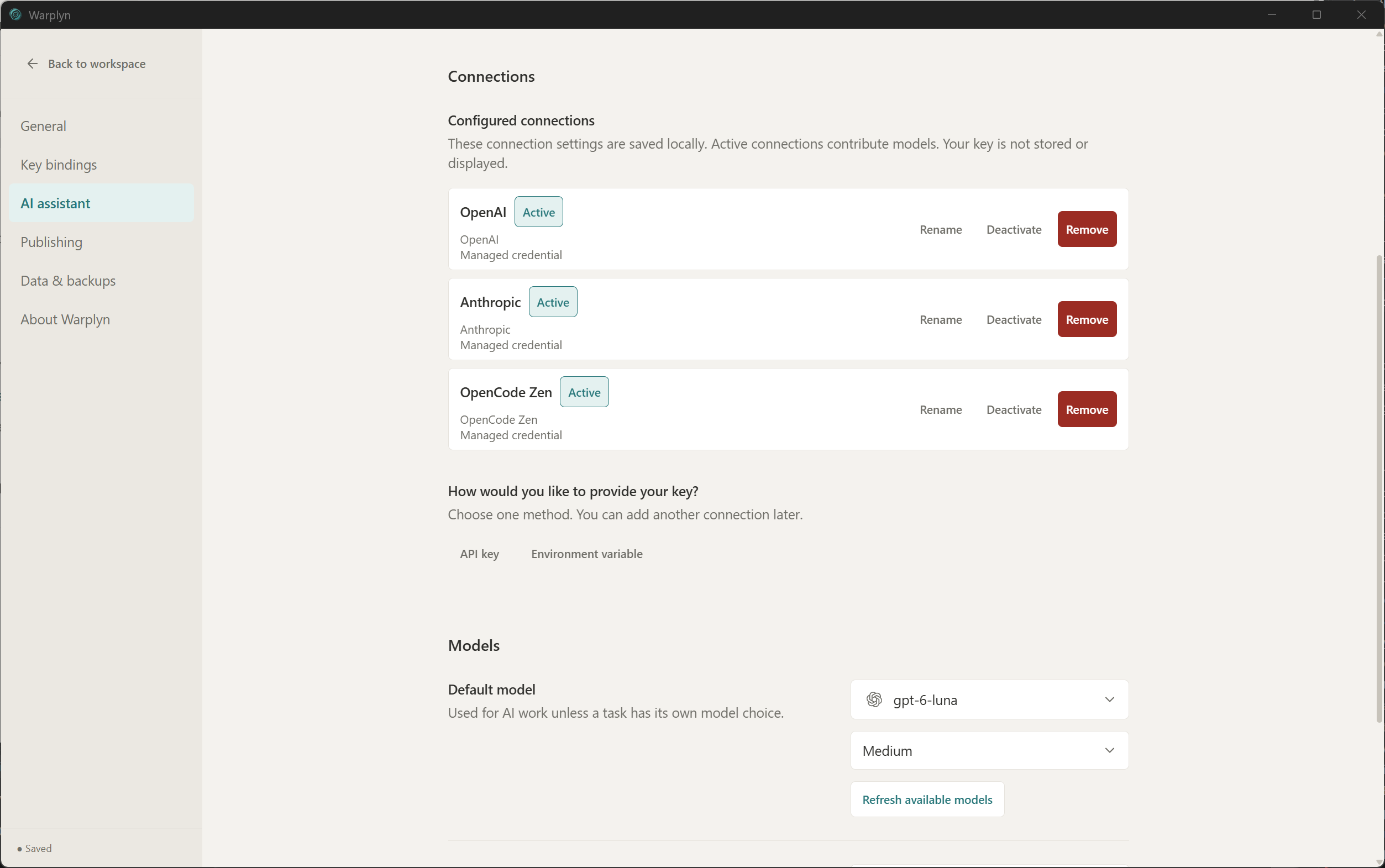
AI assistant settings with provider connections and model controls.
App model
The App model handles short helper tasks, such as Proposal summaries, titles, and understanding Assistant request intent. If you leave it unset, Warplyn uses the Default model.
Choose an efficient, lower-cost text model. GPT-6 Luna is one OpenAI option for these focused tasks (model details). With another provider, choose a comparable model. If the results are not good enough, try a stronger model.