
Appearance
Reviewing Articles
The Editorial Assistant can suggest changes, but you decide what enters an Article. Proposal Review lets you inspect changes before they become a Revision.
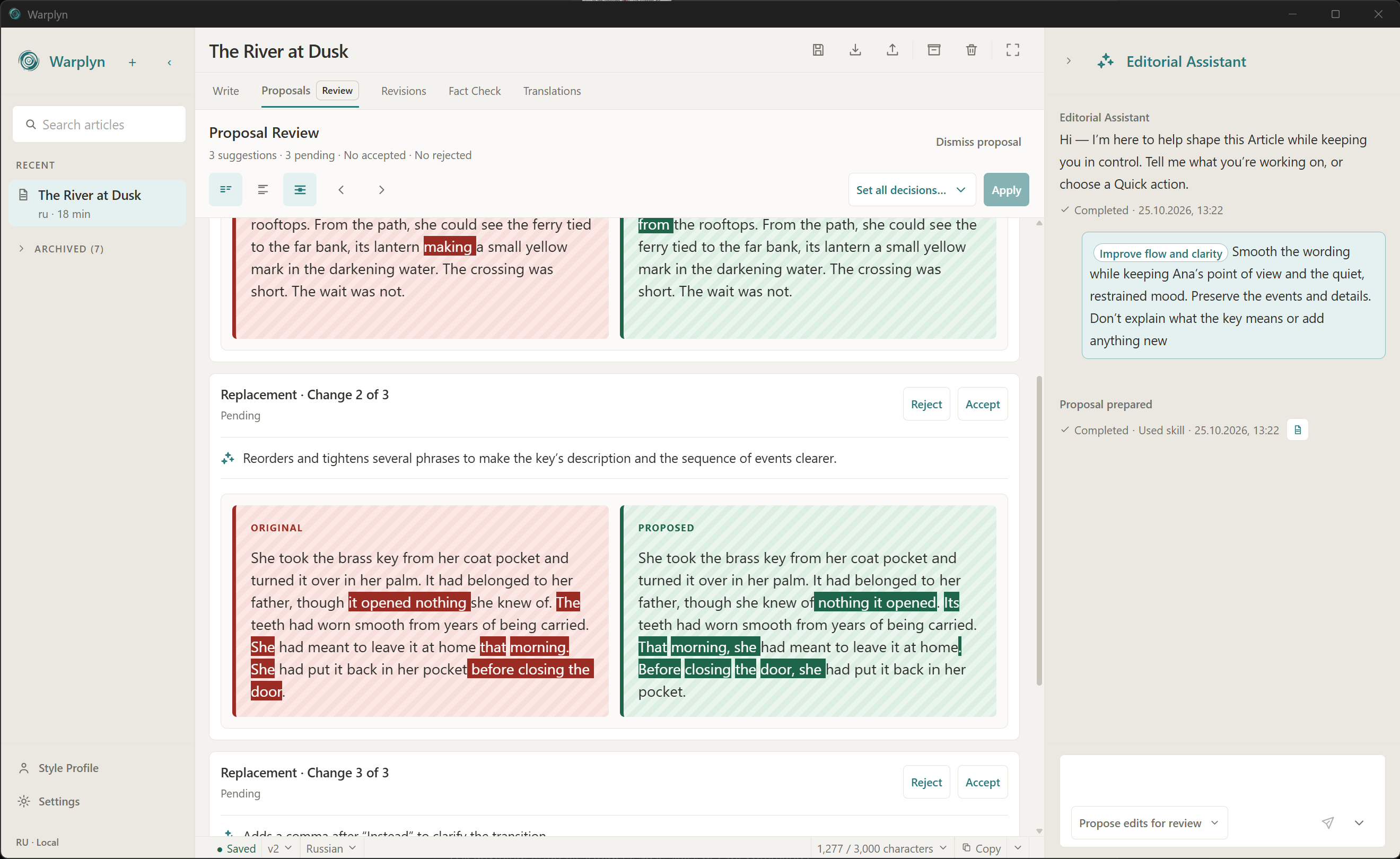
Example Proposal Review for The River at Dusk.
Review a Proposal
Open Proposal Review from the Assistant result card or the Workspace Tab Bar. Read the changes and any preservation warnings. Switch between side-by-side and stacked comparison if one is easier to read, and turn Highlight changes on when you want changed wording marked in both versions. Check names, numbers, claims, links, and voice in the changed text before accepting it.
Choose Accept or Reject for individual changes. Choose Mark all accepted or Mark all rejected from Set all decisions… to set every decision together. Then choose Apply to finish the review. Accepted text becomes a new Revision. If every suggestion is rejected, Apply dismisses the review without changing the Article or creating a Revision. Reset all decisions returns every suggestion to Pending and keeps your proposed-text edits. Choosing the decisions alone does not change the Article. Dismiss proposal clears the review without applying text. A Proposal that cannot be split safely will show a notice and require review as a whole.
Review at your own pace
You can edit proposed wording and switch comparison layouts before applying. Your decisions take effect only when you choose Apply.
If Warplyn cannot safely apply selected changes, it explains when only accepting the whole Proposal is available. A stale Proposal was made from an earlier Revision. Its changes cannot be applied to the current text. Dismiss it or return to the matching history and make a fresh request.
Browse or restore a Revision
Open Revision History to read saved versions. Selecting a Revision opens a read-only preview and does not change your current work. Revisions marked Inactive belong to a path that a later restore replaced. They remain available to inspect or restore.
Choose Restore this revision to make an earlier version current. Warplyn adds a new Revision containing that text; it does not erase the intervening history. If you have an unfinished Draft, choose whether to save it as a Revision or discard it before restoring.
Recover a Draft
A Draft checkpoint is the recoverable text saved while you edit. If local editor text conflicts with a saved checkpoint or the current Revision, Warplyn shows the retained local text beside the saved choices. Choose Keep my Draft, Use latest Draft, or Use latest Revision after comparing them. Using a saved choice can replace local text, so Warplyn asks you to confirm first.
Choose how Assistant edits are applied
New conversations use Propose edits for review by default. You can select Apply edits directly in the Composer when you want an explicitly requested edit applied without a Proposal. A successful direct edit appears as a new Revision. If you selected text, the edit stays within that selection. Direct edits are blocked when a Draft or changed Revision could make the replacement unsafe. Resolve your current work and ask again. Other generated results still require review.
Choose Edit from here on one of your earlier messages to continue the conversation from that point. Before you confirm Restore conversation, Warplyn lists later work that will be rejected, such as Proposals, Findings, or translation results. It also tells you if the Article will return to an earlier Revision or if unsent Composer text will be replaced. If a Draft needs attention, choose Save current work and restore or Discard Draft and restore. Later and current Revisions remain in Revision History. This action does not restore or change a Skill.
Read Fact Check findings
Ask the Assistant to Check facts or choose Check facts from Quick actions. When the Assistant presents claims for checking, review the list and deselect claims you do not want checked. Open Fact Check to read findings tied to the Revision that was checked. Read each explanation, source, source date, and uncertainty. Only completed findings appear. If a run is incomplete, request another check for the unfinished claims.
Use Fact Check history to read results from an earlier Revision or an earlier run. Earlier runs are read-only. If the checked Revision is no longer current, run Fact Check again before acting on a finding. Evidence can also become old; recheck when you need current sources.
Choose Accept as written when a Finding describes wording you intend to keep. This records your decision without changing the Article. To correct a claim, ask the Assistant for a correction Proposal, review the changes, and accept them explicitly. A Finding is advice, not proof that your wording is wrong.