
Appearance
Style Profile
Use Style Profile to give the Assistant examples of your writing and reusable guidance. Your samples stay on this device. They do not become part of an Article or Revision.
Open Style Profile from the Article Library utility area. Use the side menu, or the section selector on a narrow window, to choose Writing samples, Manual rules, or Typography rules. Back to workspace returns to your Article and the view you left.
Choose a starting point
Add writing samples when you want detected voice characteristics, or add Manual rules when you already know what guidance to give. You can use either one without the other.
Add writing samples
Open Writing samples when you want the Assistant to learn from your existing writing. Choose Add writing sample to paste text, or upload a .txt or .md file. You can also choose Add Revision to use a saved Article version as a sample. Give a sample a name that helps you recognize it later.
Use the sample's checkbox to include or exclude it from the profile. Excluding a sample keeps it in your list. Remove a sample when you no longer need it. Removing is confirmed because the sample is deleted from Style Profile.
Add guidance and rebuild
Use Manual rules to describe preferences the Assistant should follow. For example, you might ask it to keep first-person narration or explain an abbreviation on first use. You can add guidance without samples.
After changing samples or guidance, choose Rebuild profile to refresh detected characteristics. The profile shows which samples it used and when it was rebuilt. Until then, detected characteristics may reflect the previous set of samples. Style review Findings are advice and remain separate from the Article text.
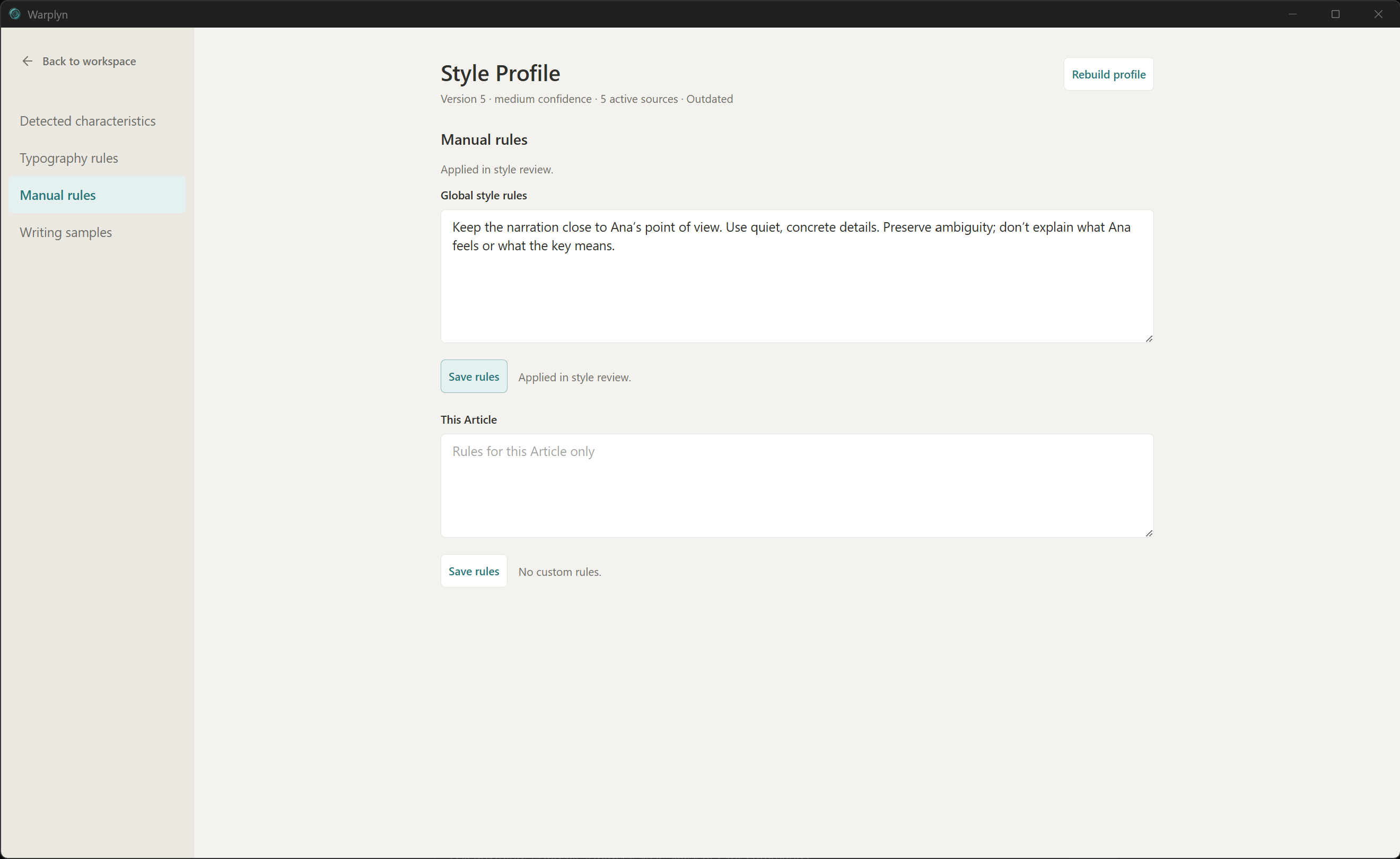
Example manual rule in Style Profile.
Example manual rule
Add scenes that show Ana’s close point of view and quiet imagery, exclude anything you do not want used, then rebuild the profile. Add a rule such as “Keep the narration close to Ana’s point of view” when that preference should apply even if the samples do not demonstrate it clearly.
Typography rules
Open Typography rules, then select Typography language. Conventions are saved separately for each writing language, independently of the interface language. Apply rules to chooses between All Articles in this language and This Article only. A translation uses its own language and preferences.
The status bar's Source language menu includes regional languages from the preset catalog. For another language, choose Other language… and enter its language code, such as ja for Japanese. You can then save custom typography rules for that language without a built-in preset.
Use Add rule to choose quotation marks, prose dashes, ellipsis, punctuation spacing, repeated spaces, or a non-breaking token pair such as 10 kg. Custom pair supports opening and closing quotation marks and spacing inside them. Literal punctuation replacement applies an exact punctuation or spacing convention. Use Contextual typography instruction when a rule needs judgment.
Language and scope
Choose the writing language and whether rules apply to all Articles in that language or only the current Article. A translation has its own language and typography preferences.
Convention preset shows regional convention previews. Previews labeled awaiting native-language review cannot be applied yet; you can configure your own rules. Regional conventions do not automatically apply to other regions. If your earlier rules were global, Copy earlier rules to this language assigns a copy without deleting the originals.
Article rules inherit the saved language conventions. Editing an inherited rule overrides it; removing one disables it for that scope. Restore inherited rules clears those overrides. Switching languages retains unsaved rule edits while Style Profile remains open.
Rules appear as compact summaries labeled Saved or Unsaved. Choose Edit to open a rule; only one rule is edited at a time. Save saves the selected scope. Saving language preferences also rebuilds the Style Profile locally from current included samples and saved guidance, including changes to sample inclusion. Article overrides are saved for that Article. Unsaved text in other forms stays unsaved. You can use explicit typography rules without writing samples; samples are needed to derive voice characteristics.
Save the current Draft, then select Check typography to check the selected Article without an AI connection. The check uses the saved Revision and its language, shown in the status bar. Choose that same language in Typography language when checking. Code, URLs, technical identifiers, and ambiguous quotation cases remain unchanged. Contextual rules require a full Review writing style through the Assistant. A language without applicable mechanical rules has no local typography coverage; add and save your own rules before checking it.
Open Review Proposal to inspect corrections and their supporting rules. Mark the corrections you want as accepted, then choose Apply. Accepted corrections create a Revision; rejecting every correction leaves the Article unchanged. Saving rules or running a check does not apply corrections. A review retains the language and rule definitions it used; a notice offers rerun after changing the language or applicable preferences. Typography does not detect language boundaries within mixed-language passages. Ambiguous cases remain unchanged.