
Appearance
Backups and recovery
Create a backup
In Settings → Data & backups, choose a Backup folder, then select Create backup. In supported browsers, Warplyn asks permission to write backups only to that folder.
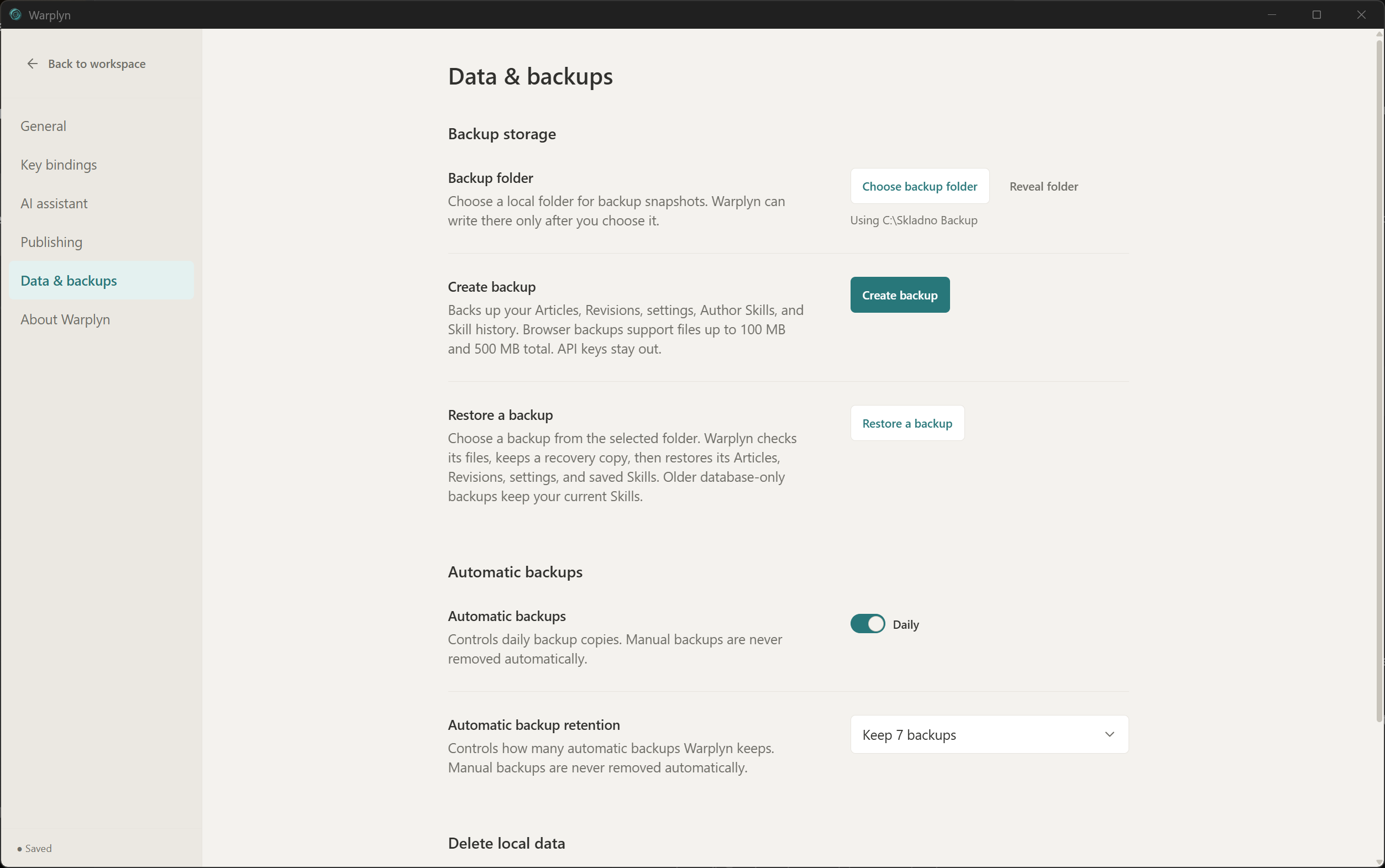
Data & backups settings in the desktop app.
What a backup contains
A new .skladno backup includes the database, current Author Skills, their Skill Revision history, and a file manifest. Backups do not include .env files or API keys.
Browser backup limits
Browser backup transfers support files up to 100 MB each and 500 MB total. Use the desktop app for larger local data.
In the desktop app, each database snapshot has a neighboring .sqlite.skills folder with current Author Skills, their Skill Revision history, your personal spelling words, and a manifest. Keep the .sqlite file and .sqlite.skills folder together when copying or restoring a snapshot. Browser backups do not include personal spelling words.
Older .sqlite backups contain only the database. Restoring one keeps your current Skill files and history.
Automatic backups
Set Automatic backups to Daily to create a snapshot shortly after Warplyn starts, then every 24 hours while it stays open. In a browser, Warplyn needs permission to use the chosen folder. If an automatic backup fails, check the folder and create a manual backup; the next scheduled attempt remains enabled.
Automatic backup retention controls how many automatic snapshots Warplyn keeps. It removes only older automatic snapshots; backups you created manually are always kept.
Restore a backup
- In Settings → Data & backups, select Restore a backup.
- Choose the backup you want to restore. Warplyn checks its files and keeps a local recovery copy of your current database and Skill files.
- When the restore finishes, check your Articles and Revisions.
Restoring a .skladno backup or a desktop snapshot with its companion folder replaces the database and saved Skills. Restoring an older database-only .sqlite backup replaces only the database.
Restoring a desktop backup also adds its saved personal spelling words to your dictionary. Existing words stay in place. Older backups without personal words leave your dictionary unchanged. Downloaded language dictionaries and spelling preload choices are not included.
AI settings after restore
Restoring clears saved AI connections and model selections, including environment-variable references. Add connections and choose models again in Settings → AI assistant. Other settings are restored. If a restore fails and Warplyn rolls back, your previous connections and model selections return.
Recover a database-only backup manually
Use these steps only for a legacy .sqlite backup. Keep Warplyn stopped until the database is back in place.
- Make a copy of your current local database.
- Copy the backup over
skladno.sqlitein your configured Warplyn data folder. - Start Warplyn and verify your Articles and Revisions.
To restore a backup that includes Skills, use Restore a backup in Settings so Warplyn can check and restore its manifest and Skill history too.
If a backup cannot be created
Warplyn leaves your active database and editing session unchanged. Check that the destination folder exists and that your account can write to it, then try again.
File permissions
By default, the local service stores its database in ~/.warplyn. Set WARPLYN_DATA_DIR to choose another folder. Warplyn ignores SKLADNO_DATA_DIR and will not use a folder that overlaps Skladno's old data location. If you are moving from Skladno, choose a separate Warplyn folder and restore a backup.
On POSIX systems, Warplyn limits access to the data folder and SQLite files to your account, including after an upgrade. Windows uses filesystem permissions managed by Windows. Browser-created backup files use the permissions of the folder you choose, so keep backups in a private folder and check sharing settings before using a shared or synced location.